Settings
Last updated: July 18, 2026
What can I change in Settings?
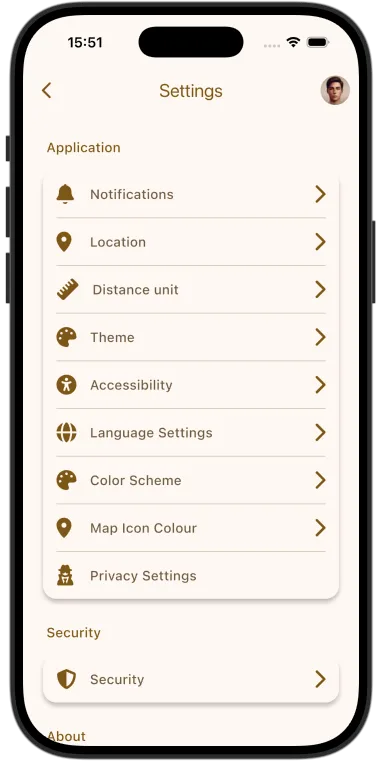
Open Settings to personalise the app and manage your account:
- Notifications: what the app notifies you about
- Location: location access
- Live Location: sharing your live location with friends (Supporter)
- Theme: Light, Dark, or follow your system (below)
- Colour Scheme: the app's accent colour (below)
- Distance Unit: Miles or Kilometres (below)
- Accessibility: options to make the app easier to use (below)
- Language: the app's language (below)
- Map Icon Colour: the colour of your marker on the map (below)
- Privacy: what you share
- Security: your account security
How do I open Settings?
Sign in, then tap your profile picture at the top of the screen to open My Account, and tap Settings.
How do I change the app's theme?
In Settings, open Theme and choose:
- Light: bright backgrounds with dark text, for daytime use.
- Dark: dark backgrounds that are easier on the eyes at night.
- System: follow your phone's own light or dark setting automatically.
Can I change the app's accent colour?
Yes. In Settings, open Colour Scheme and choose the accent colour used across the app: Blue or Gold.
Can I switch between miles and kilometres?
Yes. In Settings, open Distance unit (Units) and choose how distances are shown: Miles (mi) or Kilometres (km). Your choice applies across the app, such as on routes and meet ups.
What accessibility options are there?
The Accessibility section in Settings lets you set a Custom Font Size, so you can make text larger or smaller to suit you. The app also works with your device's own accessibility tools, such as the screen reader.
How do I change the app's language?
In Settings, tap Language Settings, then pick your language from the list.
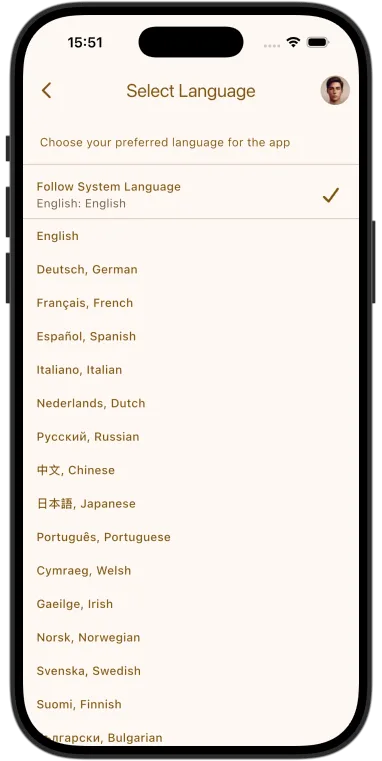
The app can also follow your device's system language: if that language is supported it is used automatically; otherwise the app defaults to English. For the full list of languages and how the translations are made, see Languages.
Can I change my map marker colour?
Yes. In Settings, open Map Icon Colour and choose the colour of your marker on the map: Blue, Magenta, Neon Green, Red, or Yellow.
Have a suggestion?
We'd love to hear from you. Email motoclubhub@mod72.com with your feedback or ideas.